PureVanilla Mod #
The PureVanilla mod is a client-side Fabric mod that makes joining PureVanilla easier from Minecraft’s multiplayer screen. Instead of manually adding server addresses, it adds a PureVanilla panel directly inside the multiplayer list where you can see the server message, check regional pings, and join through the fastest available route with a single PLAY button.
It requires Fabric for Minecraft v26.1.2 or newer. It does not change gameplay or give any in-game advantage.
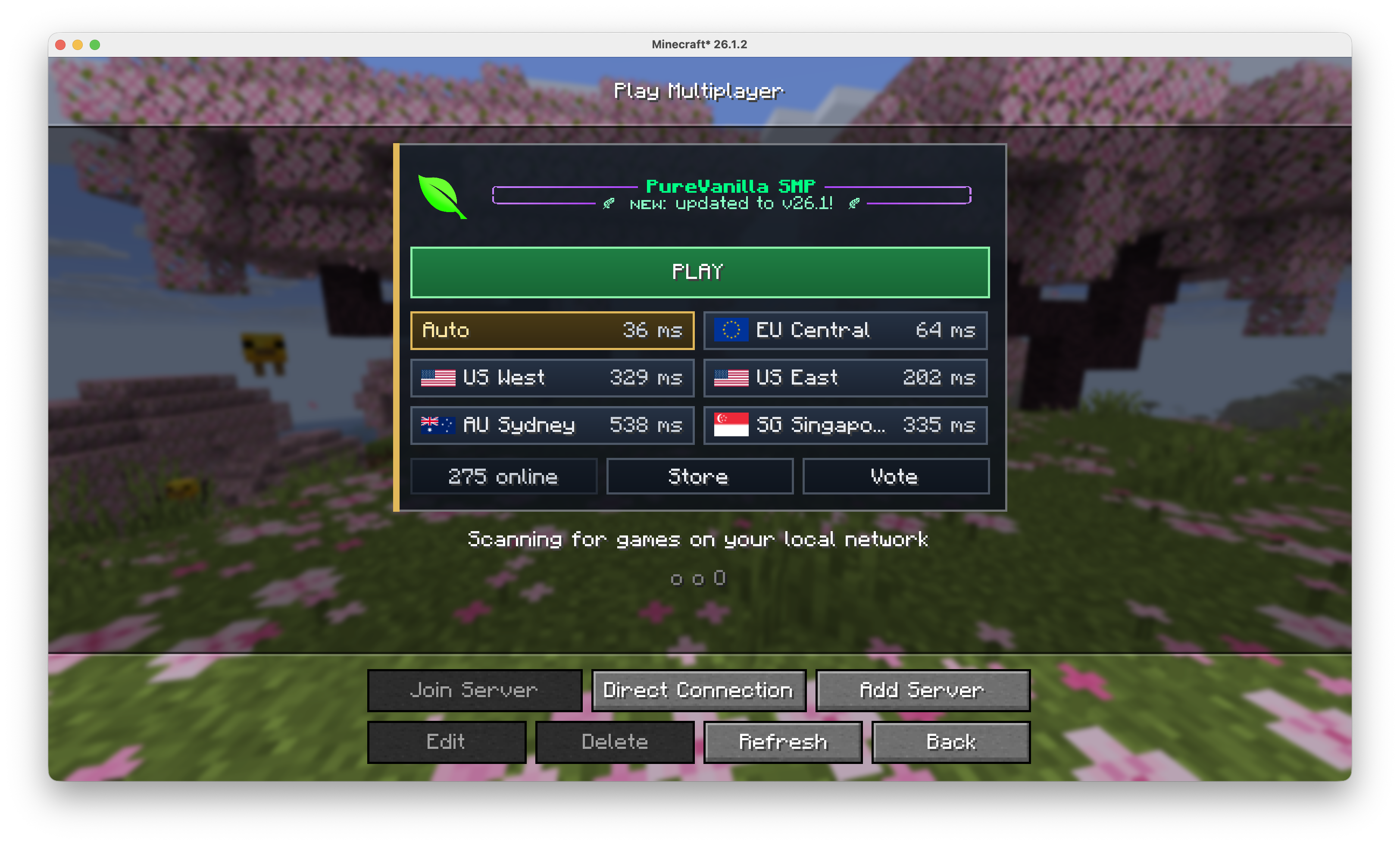
FabricAPI required — make sure FabricAPI is installed alongside this mod.
Install manually from GitLab using Fabric
This method uses Prism Launcher to manage your instance and requires downloading the mod file manually.
1. Download Prism Launcher #
Download and install Prism Launcher for your operating system.
2. Create a new instance #
Open Prism Launcher and click Add Instance.
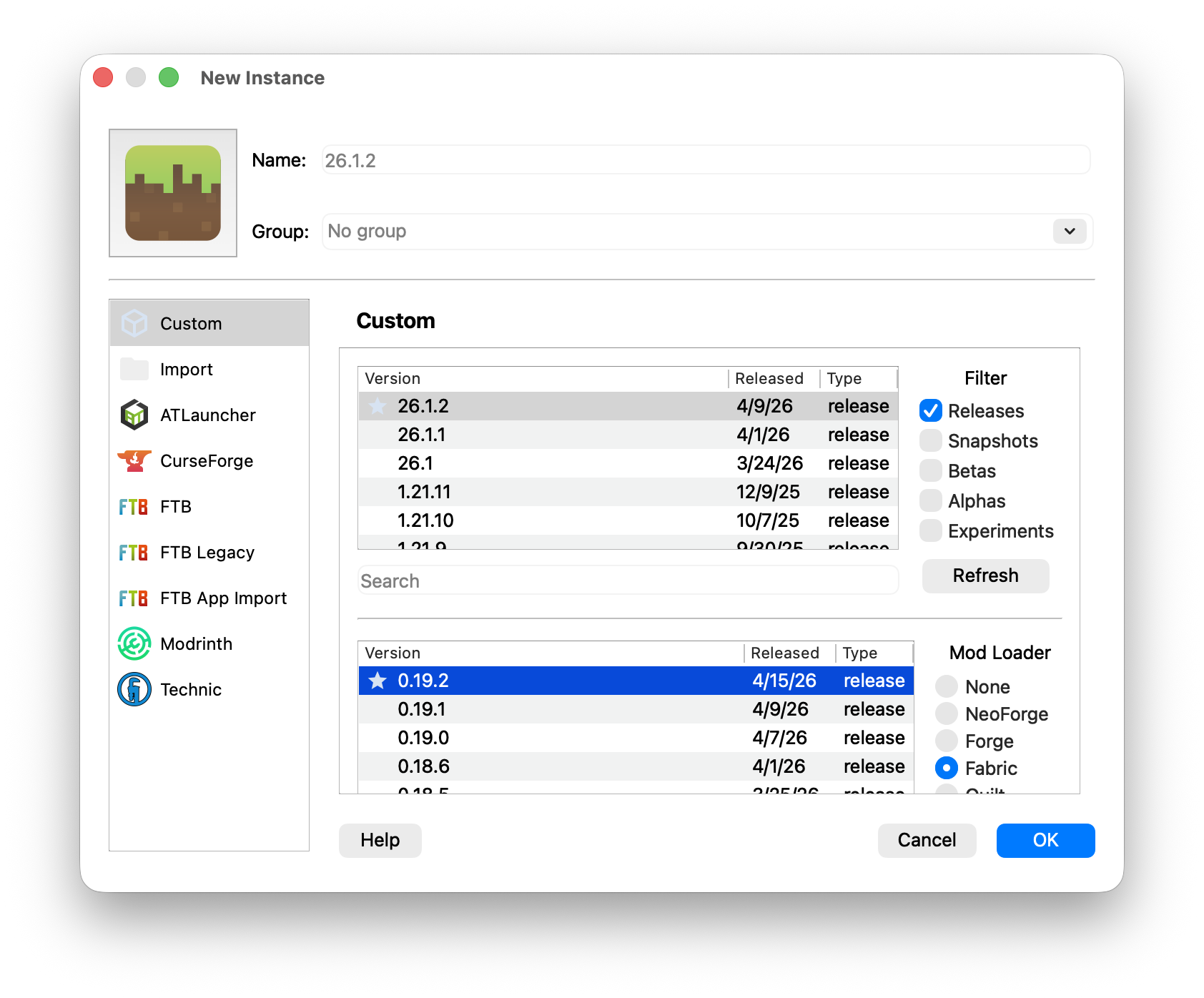
In the instance creation dialog, select Fabric as the mod loader and choose v26.1.2 as the version, then click OK.
3. Add FabricAPI #
Right-click your new instance and select Edit.
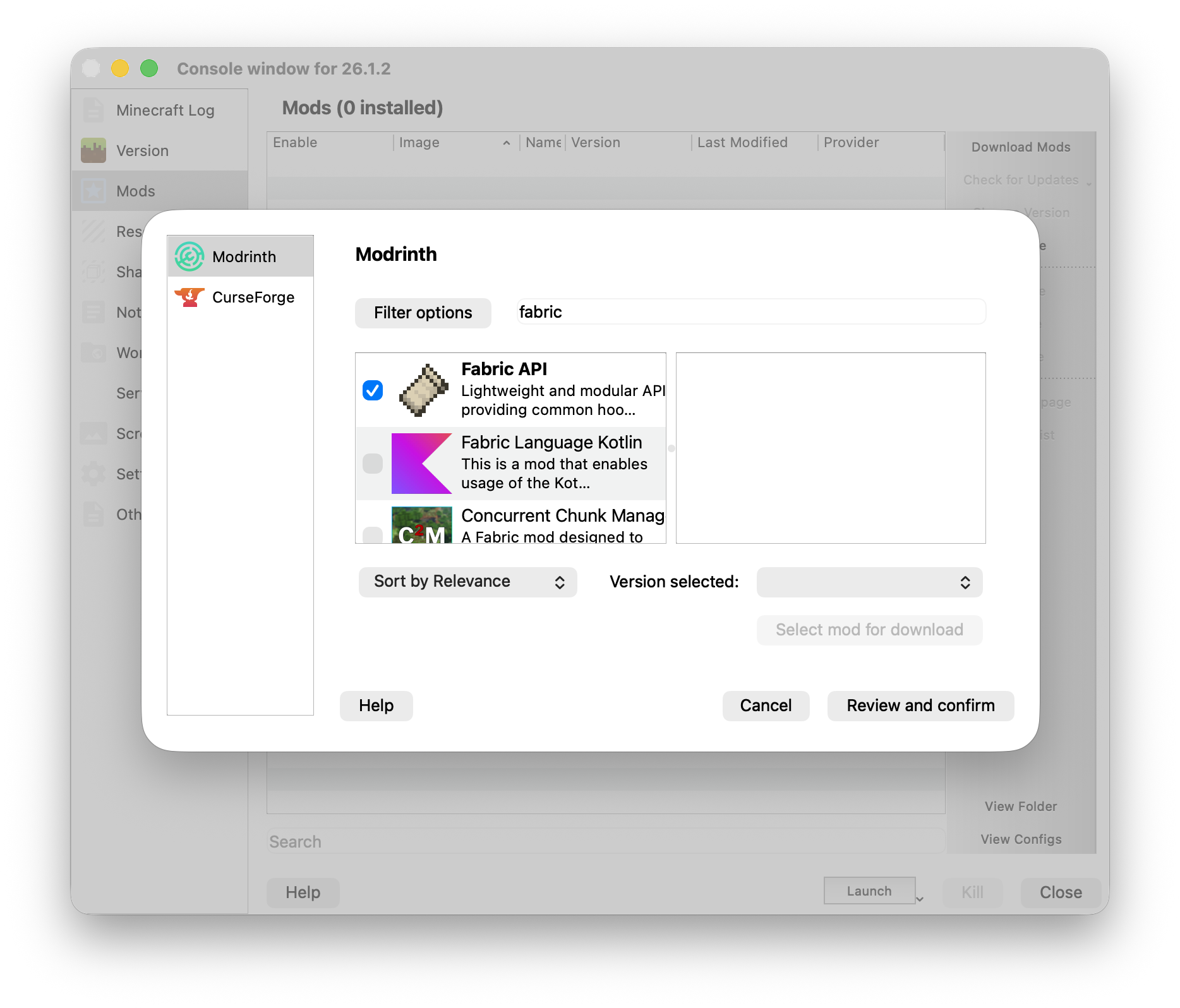
Go to the Mods tab, then click Download mods. Search for Fabric API, select it, and click Download.
4. Install the PureVanilla mod #
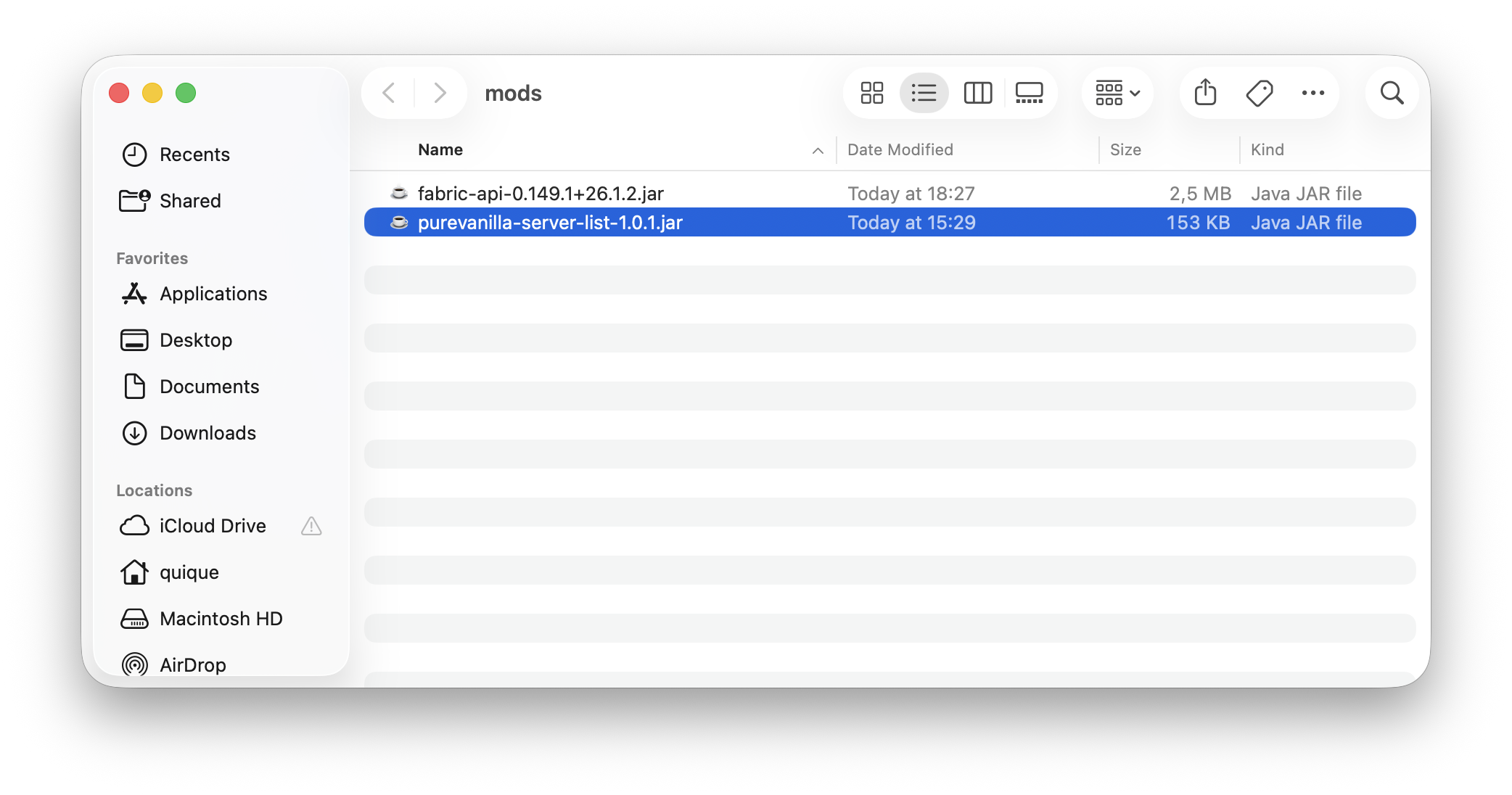
On the Mods screen, click View Folder to open the mods directory.
Download the latest PureVanilla mod .jar from
GitLab releases and drop it into that folder.
5. Launch and connect #
Start the instance and connect. Open Multiplayer and use the PureVanilla panel at the top of the server list.
Install automatically from Modrinth
This method lets Prism Launcher or the Modrinth App handle everything, including downloading FabricAPI automatically.
1. Get a launcher #
Download either:
2. Find and install PureVanilla #
Search for PureVanilla on Modrinth or directly within your launcher’s mod browser. Select the mod and click Install (or Download).
The launcher will automatically install FabricAPI as a dependency if it isn’t already present.
3. Launch and connect #
Start the instance from your launcher, open Multiplayer, and use the PureVanilla panel at the top of the server list.
Install using the official Minecraft Launcher
The official launcher doesn’t have a built-in mod browser, so the setup takes a few extra steps.
1. Create a Minecraft installation #
Open the official Minecraft Launcher, go to Installations, and create a new installation using version v26.1.2. Launch it once so the game files are generated, then close the game.
2. Install Fabric #
Download and run the FabricMC installer. Select v26.1.2 and click Install. This creates a new Fabric profile in the launcher.
3. Add the mods #
Open the Minecraft mods folder. You can find it at:
- Windows:
%AppData%\.minecraft\mods - macOS:
~/Library/Application Support/minecraft/mods - Linux:
~/.minecraft/mods
Download and drop both files into that folder:
- FabricAPI — from Modrinth
- PureVanilla mod — from GitLab releases or Modrinth
4. Launch with the Fabric profile #
In the Minecraft Launcher, select the Fabric profile and click Play. The mods will load automatically.
If you already have mods installed for a different Minecraft version, make sure the mods folder corresponds to the correct version profile, or consider using Prism Launcher to keep instances isolated.